Understanding Windows Hello for Business
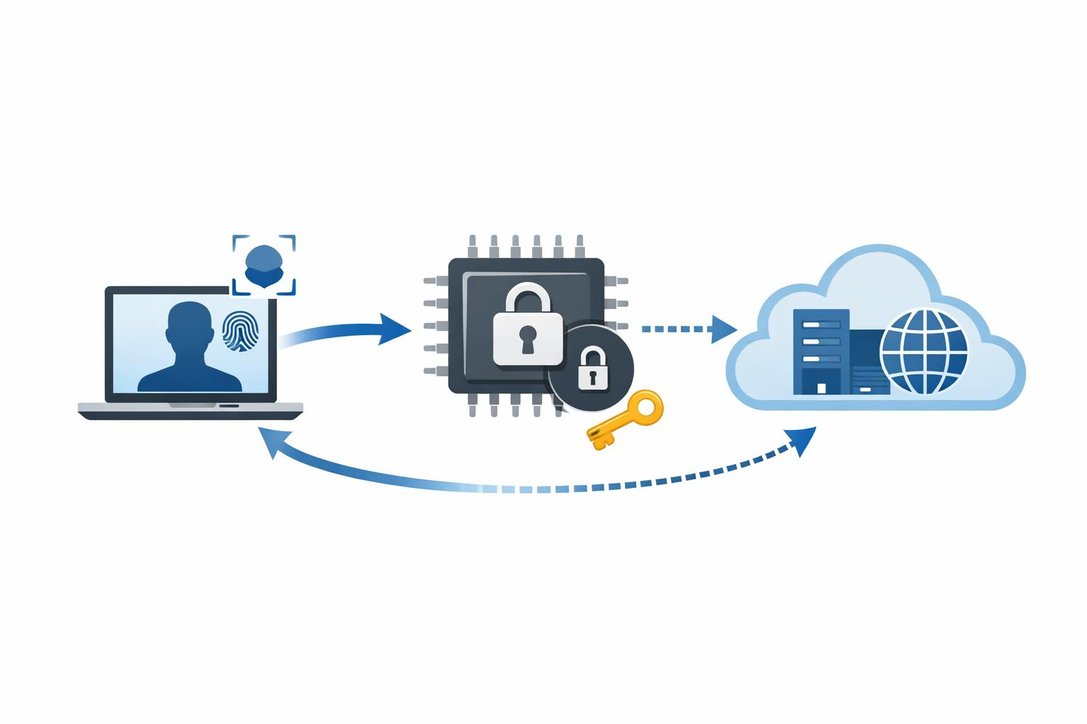
Windows Hello for Business is Microsoft’s enterprise-grade passwordless authentication system that replaces traditional passwords with strong two-factor credentials tied to each device.
When users set up Windows Hello for Business, the system creates an asymmetric key pair protected by the device’s Trusted Platform Module. The user unlocks the private key with a PIN or biometric gesture that remains local to the device and is never transmitted to servers. This approach delivers phishing resistance since the private key never leaves the device, making credential theft virtually impossible.
The TPM hardware protection thwarts tampering and brute-force attacks through hardware anti-hammering that locks out after failed attempts. Unlike traditional password authentication where credentials might be transmitted over networks, Windows Hello for Business uses cryptographic challenge-response where the PIN simply unlocks the TPM-held key to sign authentication requests.
The credentials are device-bound, meaning each device has a unique key pair, so even if an attacker obtains a PIN, it remains useless without the physical device and its TPM.
Cloud Kerberos Trust: The Modern Deployment Model
Cloud Kerberos Trust represents the recommended and simplified deployment model for Windows Hello for Business in hybrid environments. This model eliminates the complexity of traditional certificate-based approaches by removing the requirement for Public Key Infrastructure to issue user certificates.
Instead, Microsoft Entra ID acts as a cloud-based Key Distribution Center that issues Kerberos Ticket Granting Tickets, which serve as bridges to on-premises Active Directory resources.
The key advantage lies in deployment simplicity compared to older Key Trust and Certificate Trust models. Organizations can enable passwordless authentication without managing certificate authorities, certificate templates, or complex PKI hierarchies.
Cloud Kerberos Trust works seamlessly for both Microsoft Entra joined and Microsoft Entra hybrid joined devices, providing single sign-on access to on-premises file shares, applications, and services. The authentication process leverages existing Kerberos protocols, ensuring compatibility with legacy systems while modernizing the identity infrastructure.
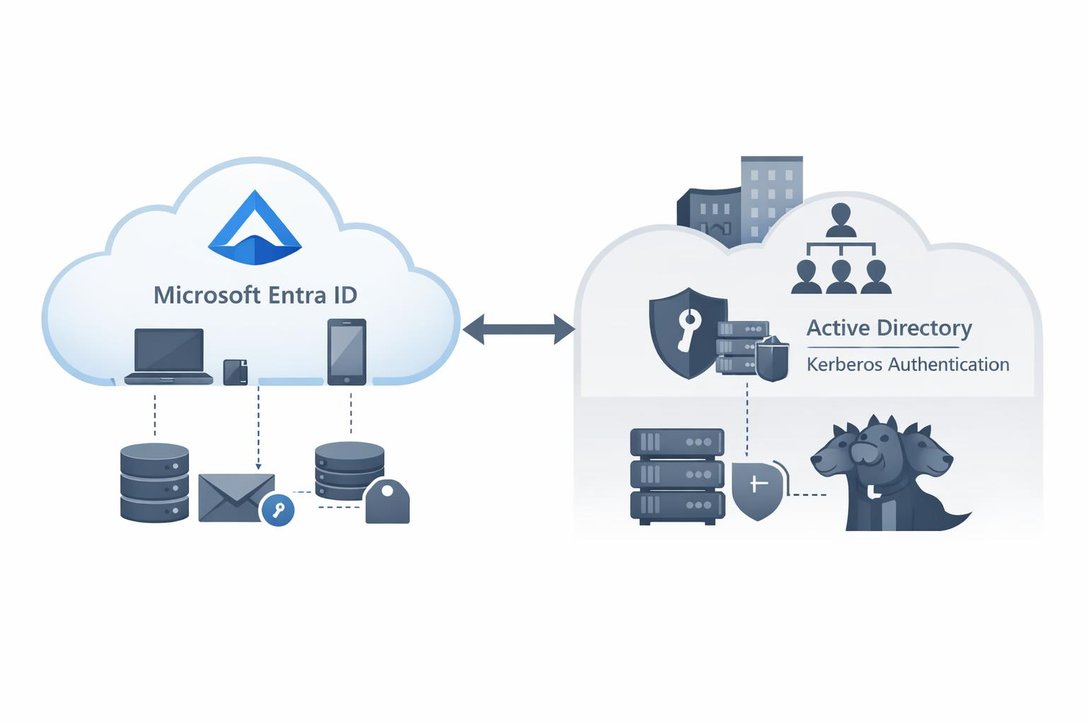
This architectural approach significantly reduces operational overhead by centralizing authentication control in the cloud while maintaining seamless integration with existing on-premises infrastructure. IT administrators benefit from simplified certificate management, reduced infrastructure complexity, and faster deployment timelines, making Cloud Kerberos Trust the preferred choice for modern hybrid identity implementations.
Prerequisites for Cloud Kerberos Trust Deployment
Successful deployment of Windows Hello for Business with Cloud Kerberos Trust requires careful attention to infrastructure prerequisites. Devices must run Windows 10 version 21H2 or later, or Windows 11, with each device containing a Trusted Platform Module chip, preferably TPM 2.0 for optimal security.
The Active Directory environment requires Windows Server 2016 or later domain controllers with adequate read-write domain controllers in each site where users authenticate. Organizations must ensure sufficient domain controller capacity to handle authentication loads, as Cloud Kerberos Trust depends on these servers for ticket validation.
User accounts must be synchronized from on-premises Active Directory to Microsoft Entra ID using Microsoft Entra Connect or similar synchronization tools. Network connectivity requires outbound access to Azure on ports 80 and 443, plus standard Active Directory ports internally including port 88 for Kerberos, port 389 for LDAP, and port 445 for SMB.
Administrator credentials must include both Domain Admin rights for on-premises Active Directory and Hybrid Identity Administrator or Global Administrator permissions in Microsoft Entra ID.
One critical limitation affects highly privileged accounts: users who are members of sensitive groups like Domain Admins or inherit membership in the Denied RODC Password Replication Group cannot use Cloud Kerberos Trust, as the Microsoft Entra Kerberos object functions as a virtual Read-Only Domain Controller with standard RODC restrictions.
Deploying Microsoft Entra Kerberos
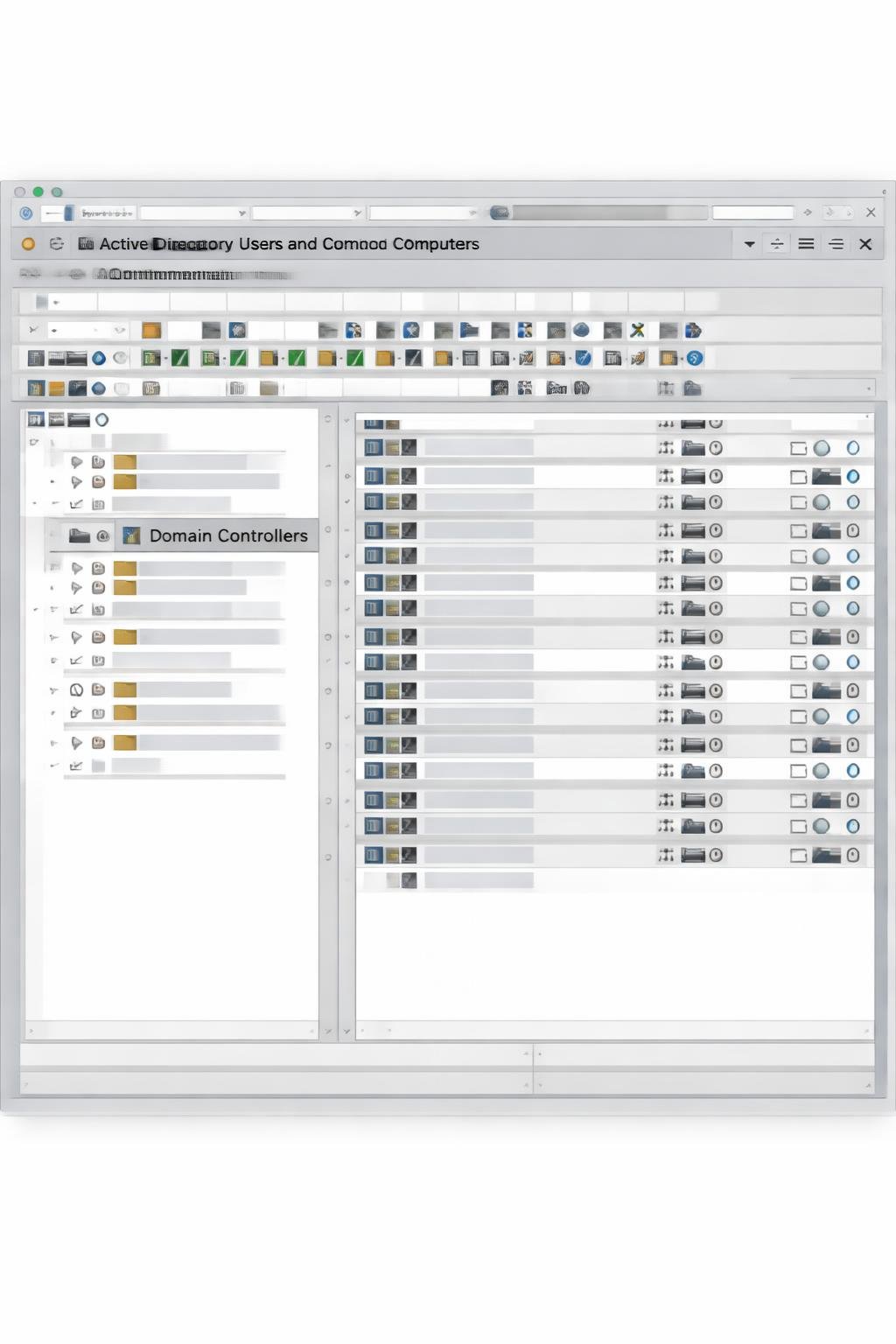
The foundation of Cloud Kerberos Trust deployment is establishing the Microsoft Entra Kerberos server object in Active Directory. This process begins by installing the AzureADHybridAuthenticationManagement PowerShell module on a server with domain controller access. Administrators first configure PowerShell to use TLS 1.2 for secure downloads, then install the module using Install-Module with the AllowClobber parameter.
The critical command Set-AzureADKerberosServer creates a specialized object in the on-premises Active Directory domain that appears as a Read-Only Domain Controller but isn’t associated with any physical servers. This AzureADKerberos computer object exists solely to enable Microsoft Entra ID to generate Ticket Granting Tickets for the Active Directory domain.
When executing the Set-AzureADKerberosServer cmdlet, administrators specify the domain name and provide Hybrid Identity Administrator credentials for authentication to Microsoft Entra ID. The command creates the object in the Domain Controllers organizational unit and securely publishes it to Microsoft Entra ID, establishing the trust relationship.
Verification involves opening Active Directory Users and Computers with Advanced Features enabled and confirming the presence of the AzureADKerberos object in the Domain Controllers container. Organizations that previously deployed passwordless security key sign-in already have Microsoft Entra Kerberos configured and can skip this step entirely, proceeding directly to policy configuration.
Configuring Windows Hello for Business Policy Settings
After establishing Microsoft Entra Kerberos, organizations must configure policy settings to enable Windows Hello for Business with Cloud Kerberos Trust on devices. Microsoft Intune provides multiple configuration methods, with the Account Protection policy under Endpoint Security being the recommended modern approach.
Administrators navigate to the Intune admin center, select Endpoint Security, then Account Protection, and create a new policy for Windows 10, Windows 11, and Windows Server platforms. The critical configuration option is Use cloud trust for on-premises authentication, which must be enabled to activate Cloud Kerberos Trust functionality.
Additional settings control PIN complexity requirements, including minimum and maximum PIN length, uppercase and lowercase letter requirements, special character usage, and PIN history to prevent reuse. Organizations can enforce TPM requirements to ensure hardware protection for private keys, set PIN expiration policies, and configure enhanced sign-in security.
Tenant-Wide Enrollment Policy
The tenant-wide enrollment policy offers an alternative for organizations wanting consistent Windows Hello deployment during device provisioning, including Windows Autopilot out-of-box experiences. This policy applies at device enrollment and affects all users on each device.
Granular Policy Targeting
For organizations with varied requirements across different user groups or device types, the Account Protection policy provides granular targeting through Azure AD group assignments, while the Settings Catalog offers access to thousands of configuration parameters for advanced scenarios requiring specific CSP settings.
How Cloud Kerberos Trust Authentication Works
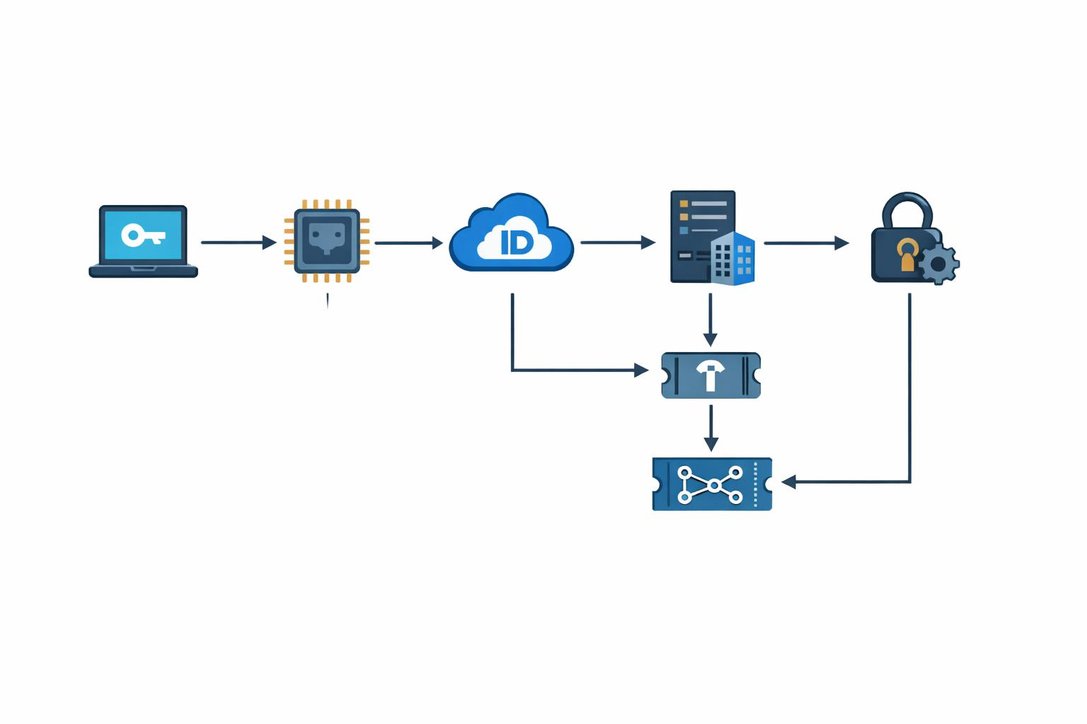
The Cloud Kerberos Trust authentication flow represents a sophisticated integration of modern cloud identity with traditional Kerberos protocols. When a user signs in to a Microsoft Entra joined device, the process begins with the user providing their Windows Hello gesture, either a PIN or biometric authentication. This gesture unlocks the private key stored in the device’s TPM.
The Cloud Authentication Provider requests a nonce from Microsoft Entra ID, which returns a cryptographic challenge. The Cloud AP provider signs this nonce using the user’s private key and returns the signed nonce to Microsoft Entra ID for validation. Microsoft Entra ID validates the signed nonce against the user’s registered public key and creates a Primary Refresh Token with a session key encrypted to the device’s transport key. The Cloud AP provider decrypts this session key using the device’s private transport key and protects it using the TPM for secure caching.
When the user attempts to access on-premises resources like file shares or internal web applications, Windows requests a Ticket Granting Ticket from Microsoft Entra ID. Microsoft Entra ID leverages the AzureADKerberos object to issue a partial TGT, which Windows presents to an on-premises domain controller. The domain controller validates this partial TGT against the AzureADKerberos RODC object and issues a full TGT, enabling the user to request Service Tickets for specific resources. This seamless bridge between cloud and on-premises authentication eliminates the need for line-of-sight to domain controllers during initial sign-in while maintaining full compatibility with Kerberos-based resources.
Security Benefits and Best Practices
Security Benefits
Windows Hello for Business with Cloud Kerberos Trust delivers substantial security improvements over traditional password-based authentication:
• Phishing Resistance: The phishing resistance stems from the fundamental architecture where passwords never exist or travel across networks, making credential phishing attacks ineffective since attackers cannot replay or reuse authentication factors.
• Hardware-Bound Credentials: Hardware-bound credentials stored in TPM provide tamper resistance with cryptographic keys that cannot be extracted or cloned, ensuring each authentication ties to a specific physical device.
• Elimination of Password Transmission: The elimination of password transmission removes risks of credential interception through network sniffing or man-in-the-middle attacks.
Best Practices
Organizations should follow several best practices for optimal security posture:
• Require TPM 2.0: Require TPM 2.0 on all devices to ensure the highest level of hardware protection for cryptographic keys.
• Configure PIN Complexity: Configure PIN complexity requirements that balance security and usability, typically requiring minimum six-character PINs with complexity rules while avoiding overly restrictive policies that frustrate users.
• Implement Multi-Factor Authentication: Implement Multi-Factor Authentication for Windows Hello enrollment to verify user identity before provisioning device credentials.
• Exclude Privileged Accounts: Exclude highly privileged administrator accounts from Cloud Kerberos Trust and maintain traditional authentication methods for these sensitive accounts.
• Monitor AzureADKerberos Object: Monitor the AzureADKerberos object permissions regularly to ensure no unauthorized modifications to the Password Replication Policy.
• Plan Domain Controller Capacity: Plan for adequate domain controller capacity in each Active Directory site to handle increased authentication traffic.
• Test with Pilot Groups: Test Cloud Kerberos Trust with pilot groups before organization-wide deployment to identify potential issues with specific applications or resource types.
• Document Recovery Procedures: Document recovery procedures for scenarios where users lose device access or TPM failures occur.
• Regular Updates: Regularly update devices to the latest Windows versions to benefit from security improvements and bug fixes in the Cloud Kerberos Trust implementation.
Troubleshooting and Verification
Successful Cloud Kerberos Trust deployment requires thorough verification and troubleshooting capabilities. Administrators can verify proper configuration using several tools and techniques.
The klist command in Command Prompt displays cached Kerberos tickets, with successful Cloud Kerberos Trust showing tickets issued by Microsoft Entra ID for the on-premises domain. Event Viewer provides detailed authentication logs in the Microsoft-Windows-HelloForBusiness/Operational and Microsoft-Windows-AAD/Operational channels, showing provisioning events and authentication attempts.
Common issues include devices not receiving the Cloud Kerberos Trust policy, which requires checking Intune policy assignments and device sync status. Users unable to access on-premises resources often indicates incomplete Microsoft Entra Kerberos deployment or domain controller connectivity problems.
Verify the AzureADKerberos object exists in each domain and review its Password Replication Policy to ensure target users aren’t denied. Network connectivity issues between devices and domain controllers can prevent TGT validation, requiring network path testing using Test-NetConnection to verify reachability on Kerberos port 88. Some applications may not support Kerberos authentication or require additional configuration for integrated Windows authentication.
Certificate validation failures can occur if domain controllers lack proper certificates for secure LDAPS communication. The Get-AzureADKerberosServer PowerShell cmdlet retrieves the current configuration and sync status of the Microsoft Entra Kerberos object, helping identify replication issues. Organizations should establish monitoring for Windows Hello provisioning failures and authentication errors to proactively address problems before they affect user productivity.