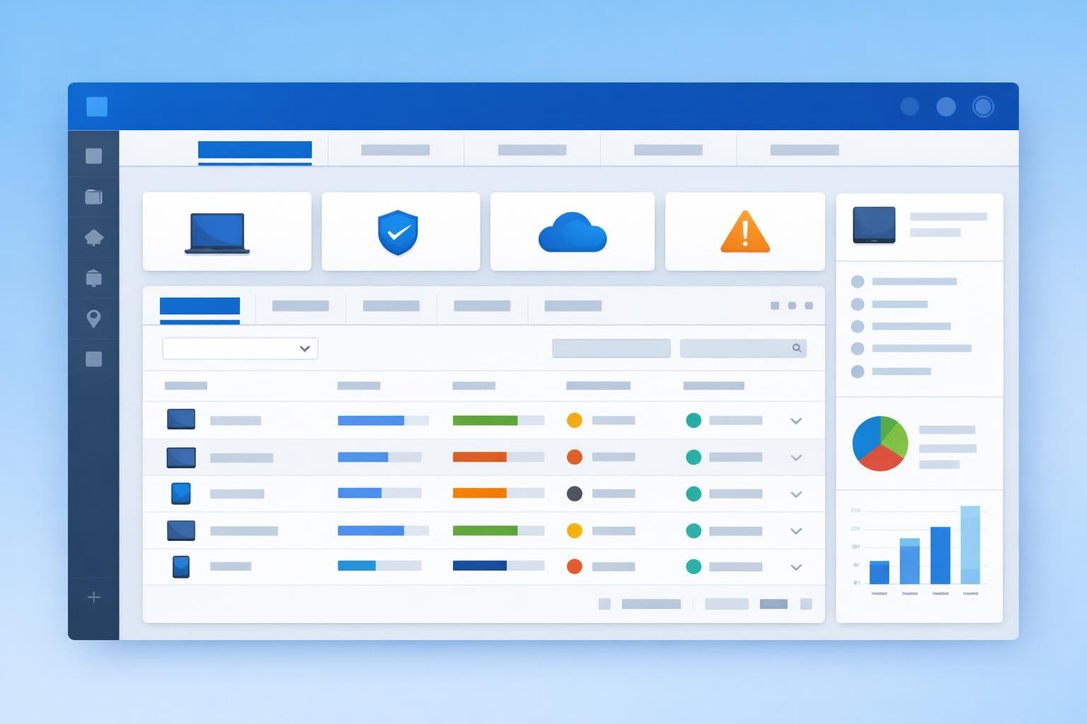
Microsoft has fundamentally reimagined how administrators interact with individual devices in the Intune admin center through a redesigned device view now available in public preview. This update represents a significant departure from the fragmented, navigation-heavy approach of the legacy interface. Instead of jumping between multiple left-navigation sections to gather context about a single device, administrators now benefit from a consolidated full-page layout organized into four intuitive tabs .
The redesign addresses a core pain point in daily device management: context switching. Previously, checking device action status, reviewing compliance data, and examining hardware specifications required navigating to separate sections, often losing context along the way . The new interface keeps all critical device information accessible from a single view, dramatically reducing the number of clicks required for routine troubleshooting and management tasks.
This architectural shift aligns with modern admin center design patterns seen across Microsoft 365 services, emphasizing scenario-focused workflows over feature-based navigation https://techcommunity.microsoft.com/blog/intunecustomersuccess/new-microsoft-intune-devices-experience/3777342. For organizations managing hundreds or thousands of endpoints, this translates to measurable time savings during incident response, compliance audits, and routine device maintenance operations.
Four Essential Tabs: Breaking Down the New Architecture
The new device view consolidates device management into four purpose-built tabs, each designed for specific operational scenarios.
Device Action Status
This tab serves as the command center for all remote actions, displaying pending, running, and recently completed operations in a searchable, filterable interface . This eliminates the common question during incident response: “Did that remote wipe actually execute?” Administrators can now verify action execution status instantly without navigating away from the device context.
Tools and Reports
This tab replaces the previous Overview tab, bringing together compliance status, configuration profiles, and remediation tools that were previously scattered across the admin center . This consolidation means troubleshooting configuration drift or compliance failures no longer requires opening multiple browser tabs or losing your place in the workflow.
Properties
This tab provides a clean editing interface for administrator-modifiable device attributes, with scope tags now visible without requiring additional navigation . This transparency improves governance and makes it immediately clear which administrative boundaries apply to the device.
Device Details
This tab replaces the Hardware tab, presenting physical specifications alongside critical Entra ID and Intune management metadata . Having enrollment status, primary user information, and hardware specifications in one location accelerates device provisioning verification and hardware refresh planning.
Essentials Section
The Essentials section remains persistently visible across all tabs at the top of the interface, providing instant access to fundamental device attributes like device name, serial number, and management state without tab switching .
Operational Benefits: Quantifying the Impact on IT Workflows
The redesigned device view delivers tangible improvements across common IT operations. Troubleshooting workflows experience the most dramatic gains, with incident resolution tasks requiring fewer navigation steps and less context switching . During a typical compliance investigation, administrators previously needed to visit three separate menu sections to correlate configuration profile status, compliance evaluation results, and recent device actions. The new interface presents all three data points within a single consolidated view, reducing investigation time and cognitive load.
Remote action management becomes significantly more transparent through the dedicated Device Action Status tab . IT teams managing lost device scenarios or performing bulk device retirements can now track action execution across multiple devices without repeatedly navigating back to summary views. The searchable action history provides an audit trail directly within the device context, improving both operational efficiency and compliance documentation.
Device lifecycle management also benefits from the consolidated Properties and Device Details tabs, which present enrollment information, hardware specifications, and administrative metadata in a logical flow . This accelerates common tasks like verifying Autopilot deployment status, confirming BitLocker encryption state, and validating primary user assignments during device handoffs or refresh cycles.
Enabling the Preview: Step-by-Step Implementation
Activating the new device view requires a simple toggle switch in the Intune admin center, with no tenant-wide policy changes or rollout complexity . The preview operates on a per-administrator basis, meaning individual admins can test the new experience without affecting colleagues who prefer the legacy interface during the evaluation period.
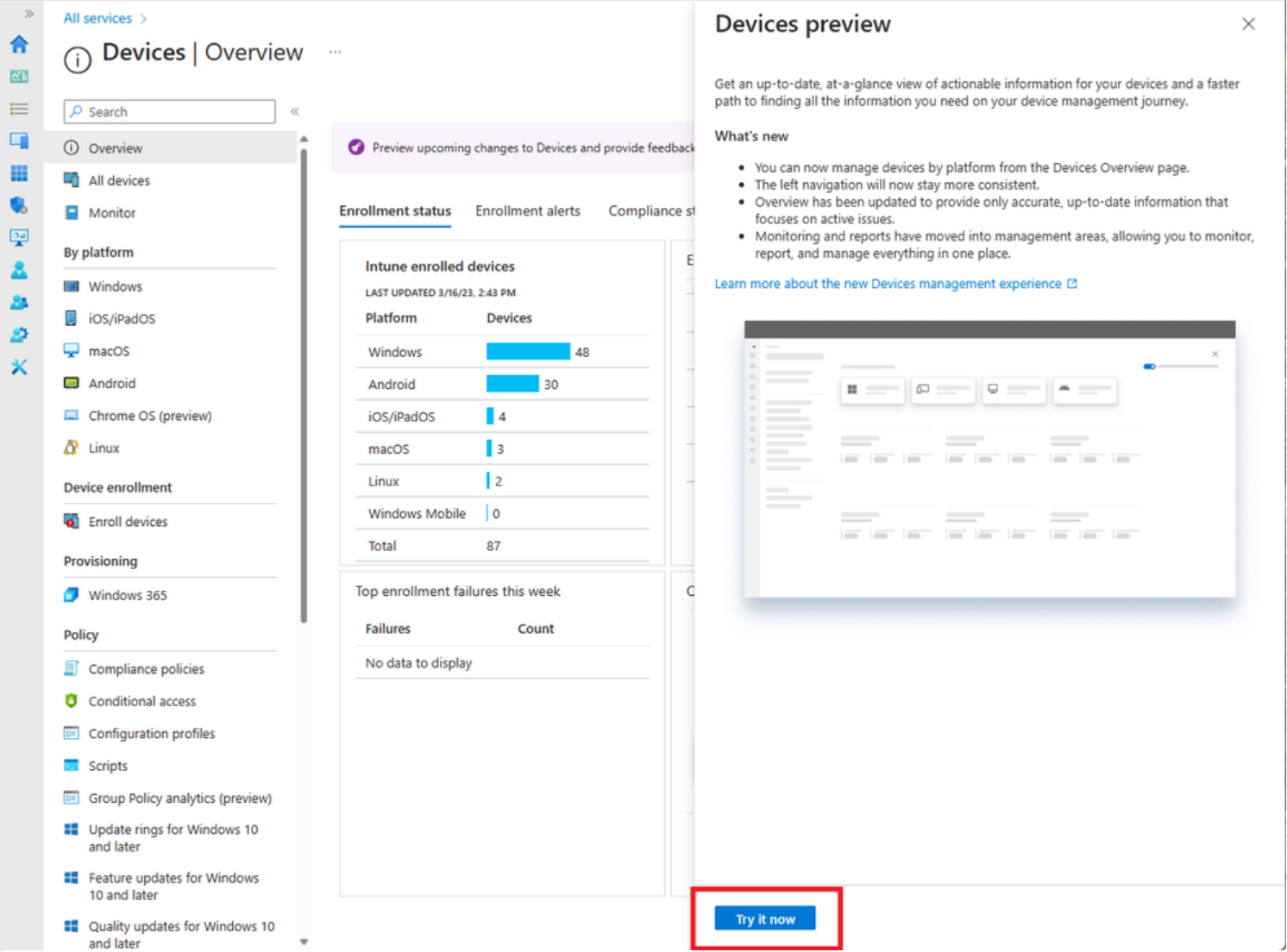
Activation Process
To enable the preview, administrators navigate to Devices > All Devices and locate the Preview new device view toggle at the top of the page. Clicking the toggle to the On position immediately activates the new experience for that administrator’s session . The setting persists across browser sessions and devices where the administrator signs in, but does not impact other administrators in the tenant.
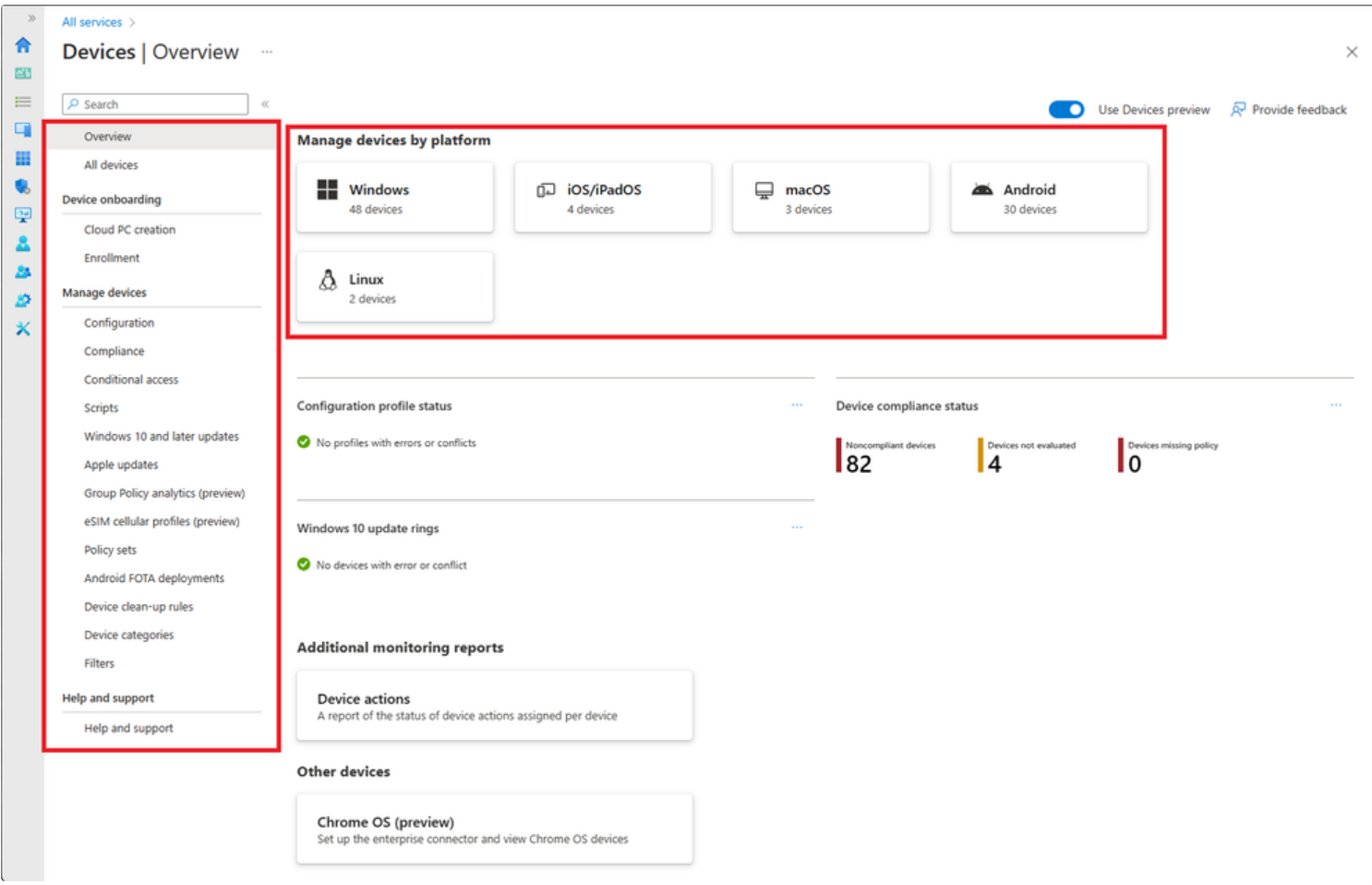
Preview Limitations and Navigation Context
One critical limitation during the preview phase affects navigation context: the new device view only displays when accessing devices through the Devices > All Devices path . Opening a device from a compliance policy report, configuration profile status page, or any other indirect navigation path continues to display the legacy interface, even with the preview toggle enabled . This constraint stems from the preview architecture and is expected to be resolved when the new view becomes the default experience.
The table below illustrates which navigation paths currently support the new device view:
| Navigation Path | Interface Displayed | Preview Toggle Required |
|---|---|---|
| Devices > All Devices | New Device View | Yes |
| Compliance Policy Report > Device | Legacy Interface | N/A |
| Configuration Profile Status > Device | Legacy Interface | N/A |
| Other Indirect Paths | Legacy Interface | N/A |
Preview Timeline and Feedback
Microsoft has not announced a specific timeline for general availability, but the preview period allows organizations to validate the new interface against their operational workflows and provide feedback through standard Microsoft support channels https://techcommunity.microsoft.com/blog/intunecustomersuccess/new-microsoft-intune-devices-experience/3777342. This approach ensures that the final release incorporates real-world usage patterns and addresses any operational concerns identified during the preview phase.
Comparing Legacy and Modern: What Changes and What Stays
The redesign fundamentally changes the presentation layer without modifying underlying device management capabilities or available actions . All remote actions supported in the legacy interface remain available in the new view, including wipe, retire, sync, restart, remote lock, and platform-specific operations like BitLocker key rotation or Autopilot reset https://learn.microsoft.com/en-us/intune/device-management/actions/.
The data displayed in both interfaces comes from the same backend services, ensuring consistency and reliability during the transition period. The primary difference lies in information architecture and workflow optimization . The legacy left-navigation model required administrators to understand the menu structure and remember where specific information resided across different sections. The new tabbed layout groups information by operational intent rather than data type, reducing the learning curve for new administrators and improving efficiency for experienced teams.
Visual design updates include improved spacing, modern typography consistent with Fluent Design principles, and enhanced filtering controls that moved from the command bar to a dedicated filter button with visual indicators showing active filters. These refinements improve usability on both large desktop monitors and smaller laptop screens commonly used by field technicians and help desk staff.
Keyboard navigation and accessibility features receive upgrades in the new interface, with improved focus indicators and more logical tab order when navigating without a mouse https://techcommunity.microsoft.com/blog/intunecustomersuccess/new-microsoft-intune-devices-experience/3777342. These enhancements support administrators who rely on assistive technologies or prefer keyboard-driven workflows for efficiency.
Real-World Scenarios: When the New View Shines
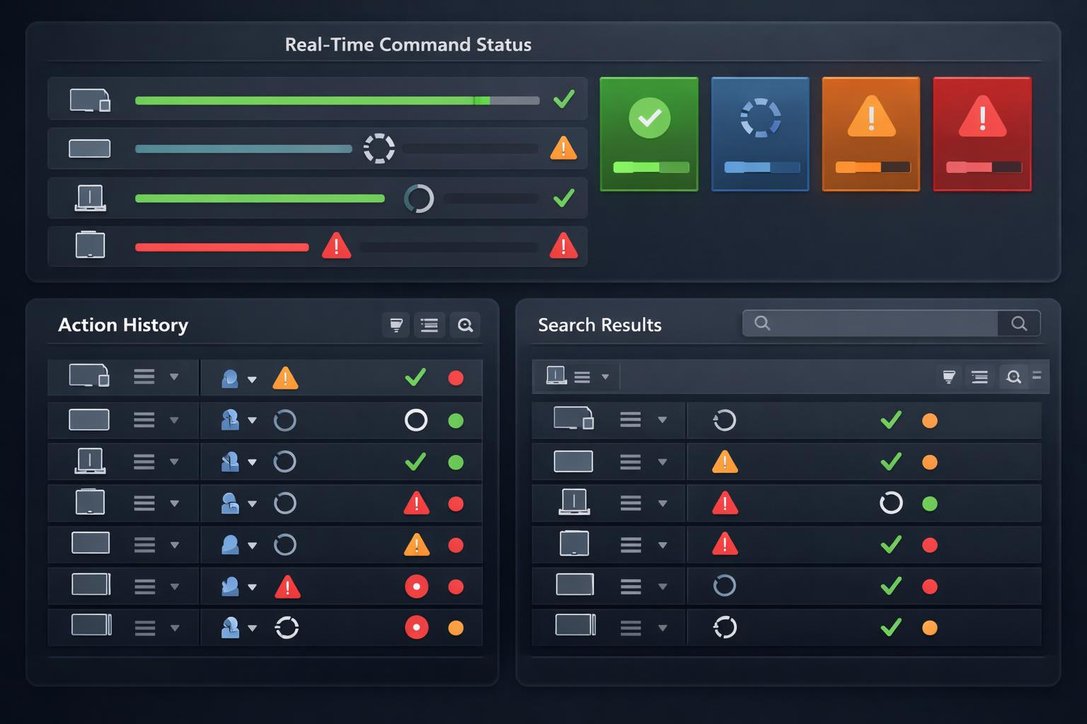
The new device view proves particularly valuable during time-sensitive incident response scenarios. When a user reports a lost device containing sensitive corporate data, IT administrators need to quickly verify the device’s last check-in time, confirm its compliance state, initiate a remote lock or wipe, and monitor action execution status https://learn.microsoft.com/en-us/intune/device-management/actions/. The consolidated interface eliminates navigation delays that could extend the window of vulnerability for data exposure. The Device Action Status tab provides real-time visibility into command execution, allowing administrators to confirm the remote wipe initiated successfully without navigating away to check audit logs .
Compliance troubleshooting represents another high-impact use case where the new interface reduces resolution time. When devices appear as non-compliant in organizational reports, administrators must correlate multiple data points: which compliance policies apply to the device, what specific settings failed evaluation, whether configuration profiles deployed successfully, and whether recent device actions might have impacted compliance state. The Tools and Reports tab consolidates this information, presenting compliance policy assignment status, evaluation results, and remediation tools in a single view rather than requiring navigation across three separate admin center sections.
Device provisioning verification during Autopilot deployments benefits from the unified Properties and Device Details tabs . IT teams can confirm enrollment completion, verify Azure AD join status, validate primary user assignment, and review deployed configuration profiles without switching between multiple views. This streamlined workflow accelerates new device validation and improves the user onboarding experience by reducing the time between hardware delivery and productivity enablement.